
How to outline text, and add a shadow or a glow
Free in your browser, nothing to install: try this in BoboCreate Online.
Select your text, scroll the panel on the right down to Effect, and tick Stroke: that is the outline. + Add stroke puts a second, wider one around it, and Shadow and Outer glow are just below. Export a PNG and every one of them is in the file.
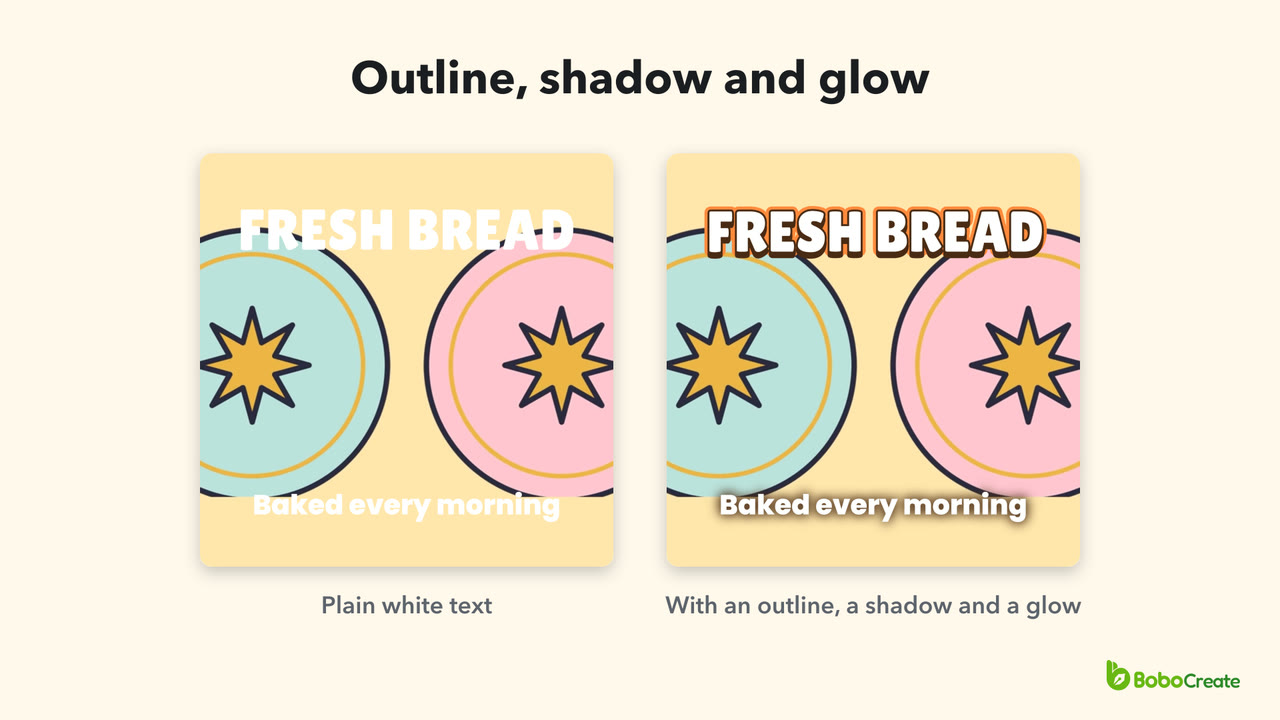

Here the post is a Square post 1080 × 1080 px with our bakery picture behind two white texts: FRESH BREAD in Lilita One, and Baked every morning in Poppins. White on a light picture is hard to read, which is what these effects fix.
Find Effect
-
Select the text
Click it on the page. The panel on the right shows its settings.
-
Scroll down to Effect
It lists Stroke, Shadow, Outer glow and Gradient, each with a tick box.

Outline text with Stroke
-
Tick Stroke
The letters get an outline, 2 px wide and black to start with.
-
Choose its colour
Type a colour code in the box next to the little square, or click the square to pick one. The dropper takes a colour from your design. Here it is #4a2a14, a dark brown.
-
Drag Width
Or type a number in the box above the slider. Here it is 10.

The stroke is drawn behind the letters, so it outlines them instead of eating into them. On a design measured in pixels, Width is in pixels. On a design in inches or centimetres, it is in points.
Add a second outline for a sticker look
-
Click + Add stroke
Stroke 2 appears under the first one, with its own colour, opacity and width. It starts white, 4 px wider than the widest stroke, so it shows around it.
-
Make it wider than the first
Give it a colour and a bigger Width. Here it is #ff8a3d, orange, at 26.

The strokes are drawn from the widest to the narrowest, so the wider one always sits behind. Add as many as you like. Each one has a tick box to switch it off for a moment, and ✕ removes it.
Add a shadow
-
Tick Shadow
A sharp black shadow appears, 10 px to the right of the letters.
-
Choose its colour
The same way as the stroke. The number next to it is the opacity: lower it for a lighter shadow.
-
Set X and Y
X is how far the shadow moves across, and Y how far it moves down. Here X is 0 and Y is 12, so the shadow sits straight below the letters.
-
Set Blur
At 0 the shadow has a sharp edge, like here. Drag Blur up for a soft shadow.

+ Add shadow puts another one behind it, with its own colour, X, Y and Blur.
Add a glow
Outer glow is a soft light all round the letters. On a dark background, a light colour makes text glow. On a light picture, a dark colour gives white text a soft edge, so it stays readable without a hard outline.
-
Select the text and tick Outer glow
Here it is the second line, Baked every morning. The glow starts yellow.
-
Choose its colour and Size
Here the colour is #4a2a14 again. Size, from 1 to 150, sets how far the glow spreads; here it is 30.

Export a PNG
-
Click Export, then PNG
Choose a Resolution: 1×, 2× or 3× the design's size. At 2×, this post comes out at 2160 × 2160 px.
-
Click Export PNG
Choose where to save it. The file has every outline, shadow and glow, just as they look on the page.

Which one to use
- One outline for big, bold words that must stand out from the picture behind them.
- Two outlines for lettering that looks like a sticker or a badge.
- A sharp shadow for depth, and a soft one to lift text off a busy background.
- A dark glow for smaller text on a light, busy picture, and a light glow on a dark background.
Pictures have the same Effect section: select one to give it a stroke, a shadow or a glow.
Where it goes wrong
- The outline is thin and black. That is how a stroke starts. Set its colour and Width.
- The second outline sits inside the first. The widest stroke is always drawn behind, so a narrower one lands on top. Make the outer one the widest.
- The shadow falls to the side. It starts 10 px to the right. Set X to 0 and use Y to move it down.
- The glow is yellow. That is its starting colour. Choose your own in the colour box.
- Only one word should have it. Effects apply to the whole text box. Put that word in a text box of its own.
The picture in this guide is our own bakery art. The fonts, Lilita One and Poppins, come with the app.
Try it free in your browser
Every step in this guide works in BoboCreate Online: Stroke, Shadow and Outer glow are in the same Effect panel.
BoboCreate Online is free, with no account. Its downloads carry a small “Made with BoboCreate” mark; the BoboCreate app exports without it, and adds photos, video, cutting files and print quality.