
How to make a vertical video from a template
Open the Video tab, set Shape to 9:16, and pick one of the vertical templates. Type your own words into it, put your photo in its photo place, and export an MP4 at 1080p. That makes a 1080 × 1920 video, ready to upload as a YouTube Short, an Instagram Reel or a TikTok.
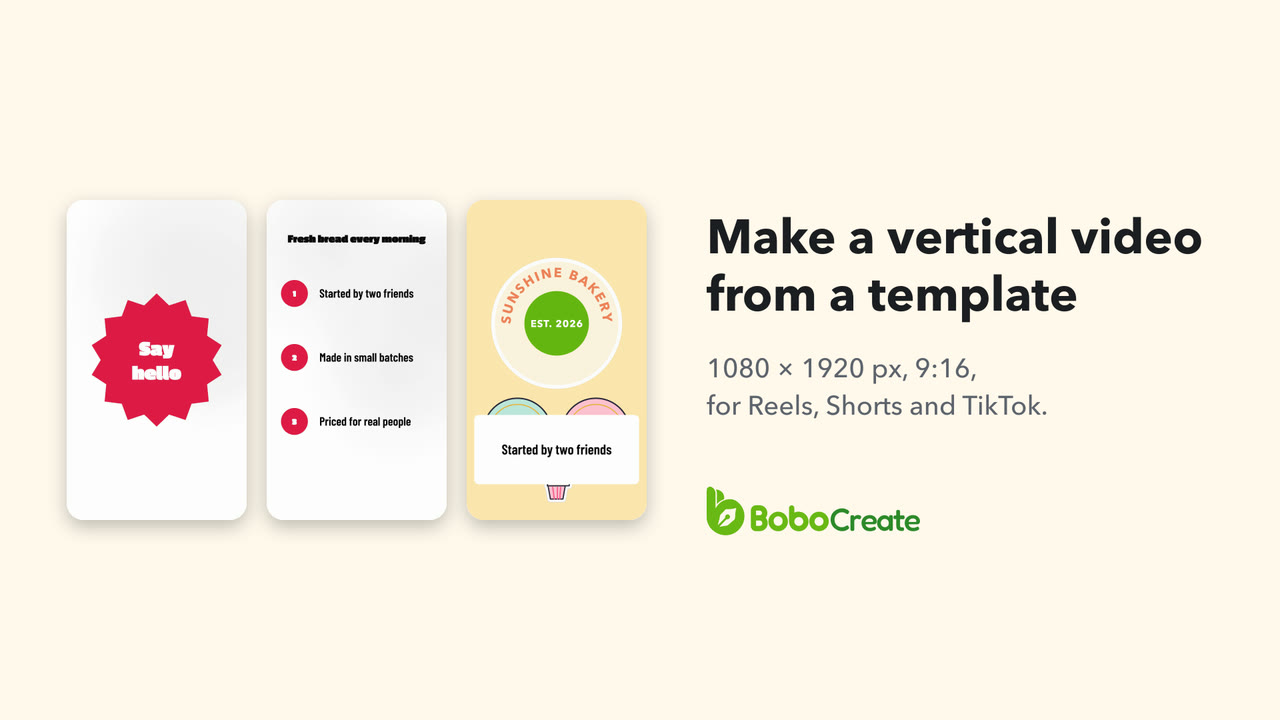

The vertical size
A vertical video is 9:16, nine wide for every sixteen high. At 1080p that is 1080 × 1920 pixels. This is what the services' help pages say about it:
| YouTube Shorts | Instagram Reels | |
|---|---|---|
| Shape | Square or vertical | From 1.91:1 to 9:16 |
| Length | Up to 3 minutes | Up to 20 minutes; reels over 3 minutes aren't recommended to new audiences |
| Frame rate | Not given | At least 30 fps |
| Smallest size | Not given | 720 px |
The template here comes out at 1080 × 1920, 30 fps, 22 seconds, as an H.264 MP4. TikTok's help pages don't give a size, so this guide doesn't either.
Find a vertical template
-
Open the Video tab
In the library, click Video at the top. It shows Video templates 120, in groups.
-
Set Shape to 9:16
Above the templates, set Shape to 9:16. 58 templates are left, in 12 groups such as Short Video Ads, Lifestyle & Daily Vlog and Fashion & Beauty. You can also search, or narrow them by Length, Visual style, Animation and Media type.
-
Watch one, then use it
Click a template to play it. Beside it you see its length, shape and number of scenes, and where your own photo or clip fits. Click Use this template.


To start from nothing instead, the Blank video buttons at the top make an empty 9:16, 16:9, 1:1 or 4:5 video.
Change the words
The template opens in the editor, with a timeline underneath. Every line of words is a purple clip on the timeline.
-
Click a line's clip
The panel on the right shows its Text box, with its font, size and colour under it.
-
Type your words, then click outside the box
The video changes when you leave the box. Do the same for each line you want to change. Here, A better way to shop became Fresh bread every morning, and yourbrand.com became Sunshine Bakery.

Put in your own photo
A template's photo place is a blue clip named after its scene, here Scene 1 photo or clip. This template has 14 tracks, so scroll down the timeline to find it.
-
Click the blue clip
The Media panel on the left shows the place's name, a few ideas for what to put there, and two buttons: Use my photo and Use my clip.
-
Click Use my photo
Choose a picture. It takes the place, with the template's own animation; this one zooms in. The picture here is 1080 × 1920, the same shape as the video.

Music and sound
The template comes with its own music and sound effects. The app makes them itself, and its Audio panel says so: there is nothing to credit or license. Click the play button under the video to watch it with your words.
Export an MP4
-
Open Export
Click Export at the top right. In Export MP4, keep Shape at 9:16 and Resolution at 1080p. The template's Frame rate is 30 fps.
-
Check the line underneath
It should read 1080 × 1920 · H.264 · 22 seconds.
-
Export and save
Click Export and choose where to save the file. The app writes the video frame by frame, then says Saved 1080 × 1920, 660 frames. Click Show the file to find it.

Resolution also offers 720p and 4K, and Frame rate offers 24, 30 and 60 fps.
Then upload it
-
YouTube
In YouTube Studio on a computer, click Create, then Upload videos, and choose the MP4. YouTube treats a square or vertical video of up to 3 minutes as a Short.
-
Instagram
On a computer, click Create, then Post, then Select from computer. Click Next to choose a cover and trim it, Next again, and Share.
-
TikTok
On TikTok's website, click Upload, then Select video to upload.
Where it goes wrong
- The words don't change. The video takes the new words when you click outside the Text box.
- You can't find the photo place. Scroll down the timeline: it is the blue clip named Scene … photo or clip.
- The export won't start. If a picture or clip the video uses is missing from your library, the app names it and won't export until you replace it, rather than write the video without it.
- A Reel at 24 fps. Instagram asks for at least 30 fps, so keep Frame rate at 30 or 60.
- You clicked Stop. Stopping an export saves nothing. Click Export again.
Sources
The sizes, lengths and upload steps are from each service's own help pages:
- Upload YouTube Shorts (YouTube Help)
- Reel size & aspect ratios (Instagram Help Center)
- Record a reel on Instagram (Instagram Help Center)
- Making a post (TikTok Help Center)
YouTube, Instagram and TikTok are trademarks of their owners. BoboCreate is not affiliated with or endorsed by any of them.
This one needs the BoboCreate app
Video is made in the BoboCreate app. The editor itself is free to try in your browser.
BoboCreate Online is free, with no account. Its downloads carry a small “Made with BoboCreate” mark; the BoboCreate app exports without it, and adds photos, video, cutting files and print quality.